How Lena reads German books
A short comic about the Kurzdeutsch reader
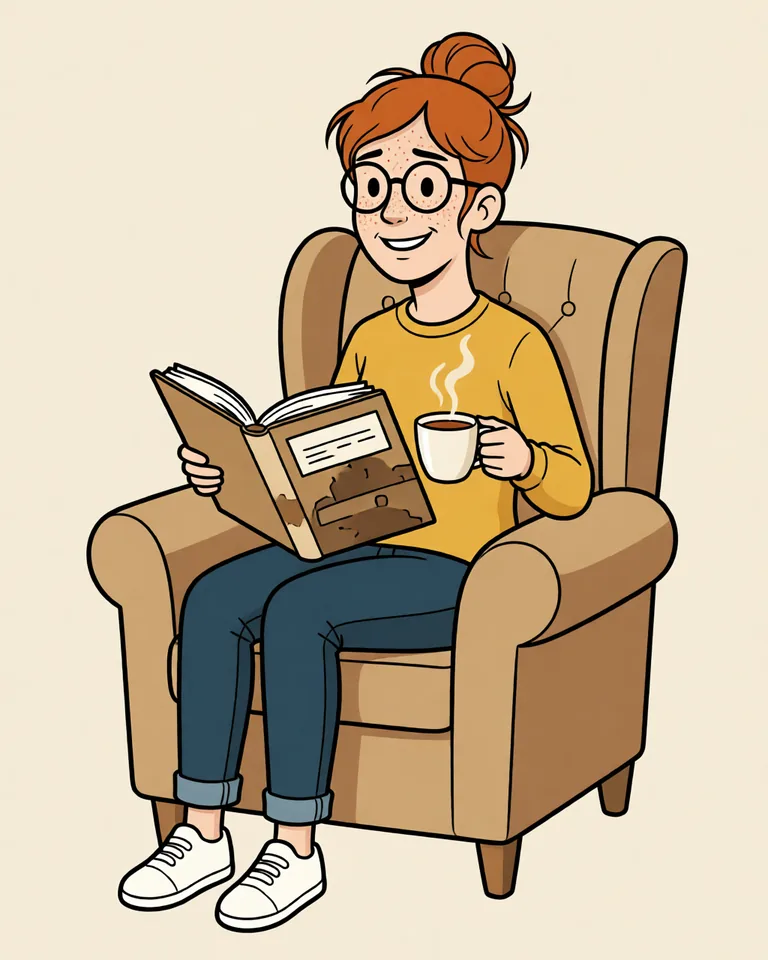
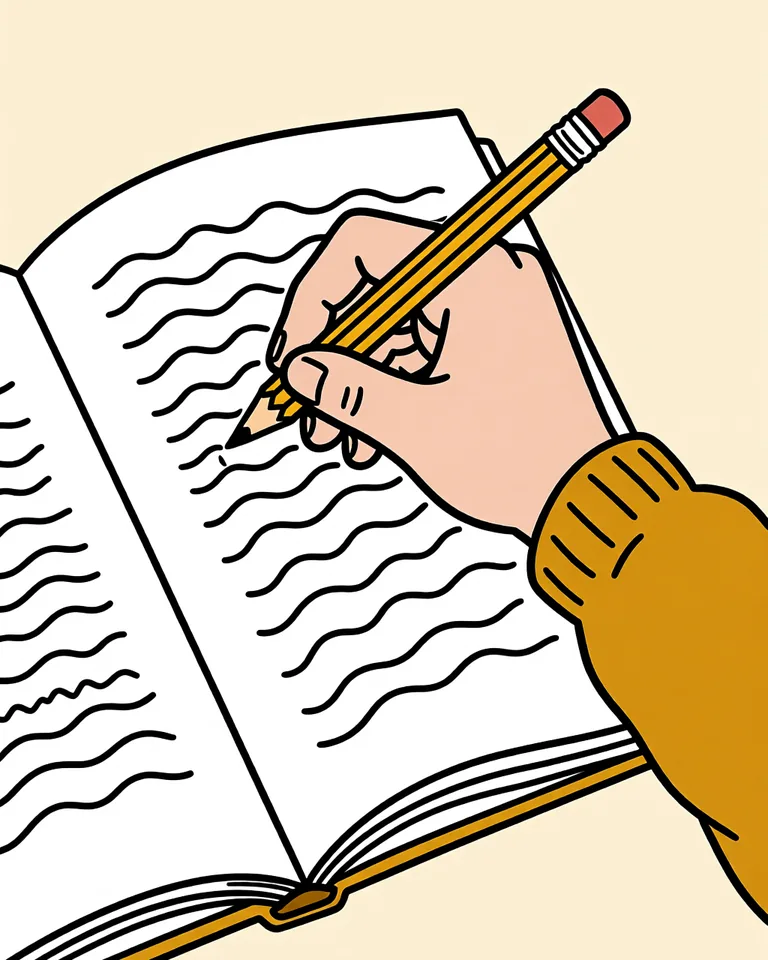
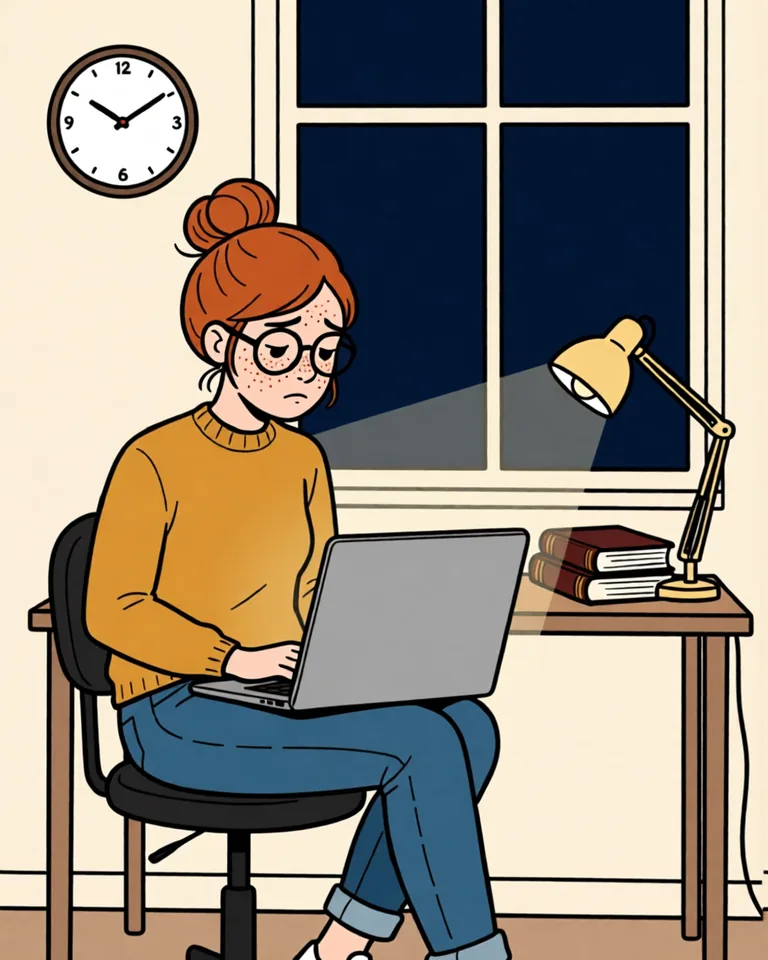
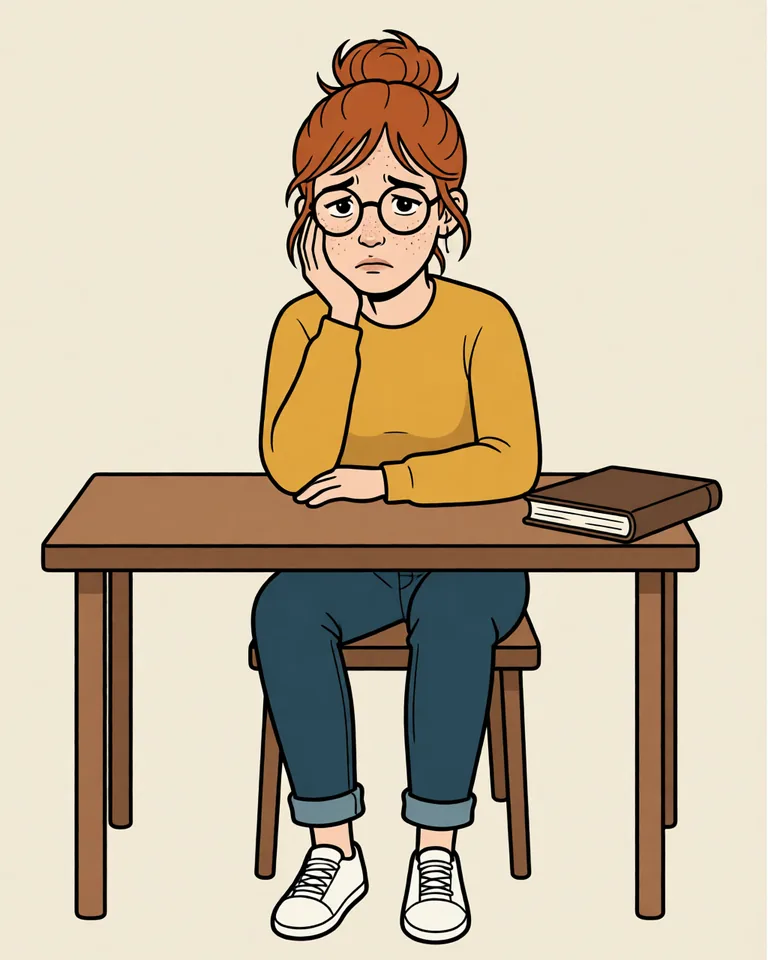
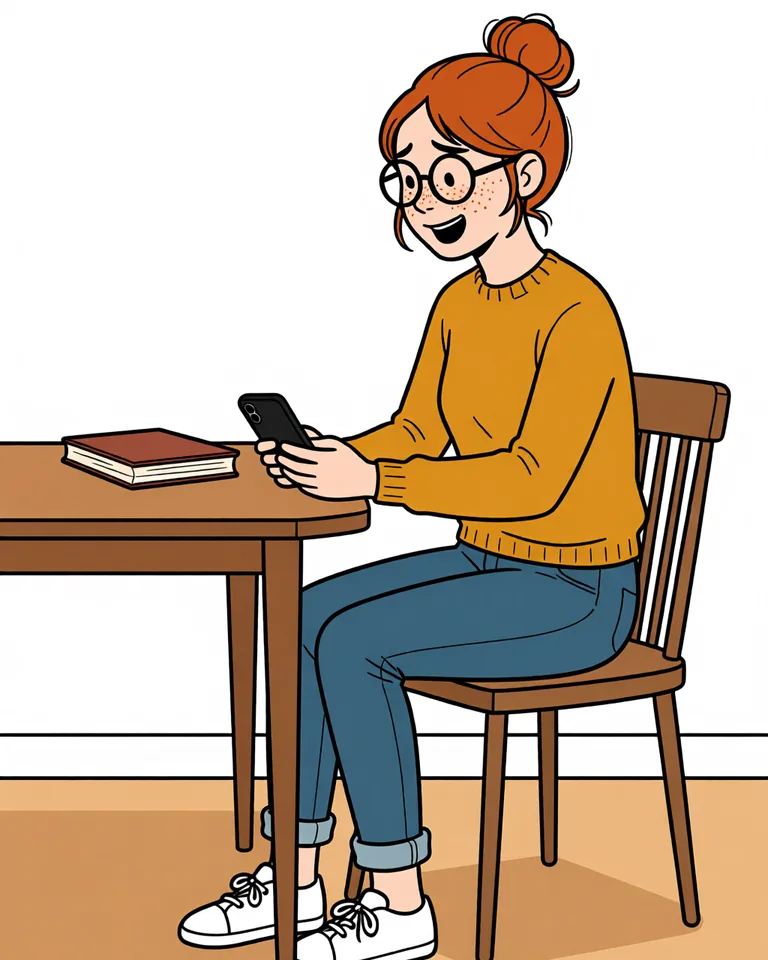
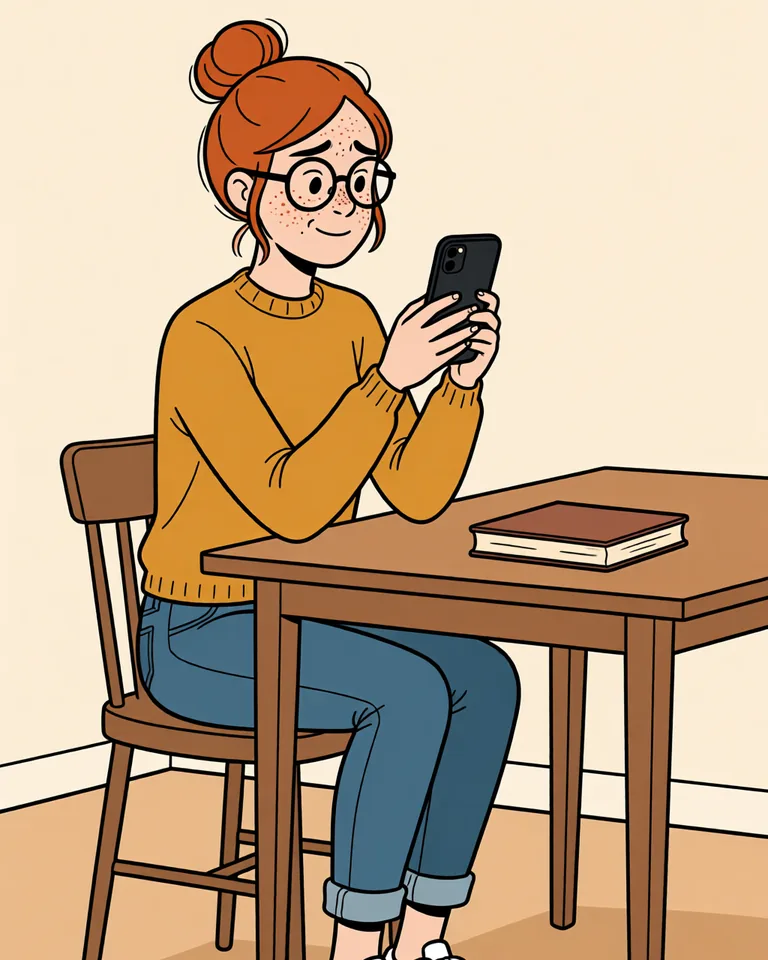
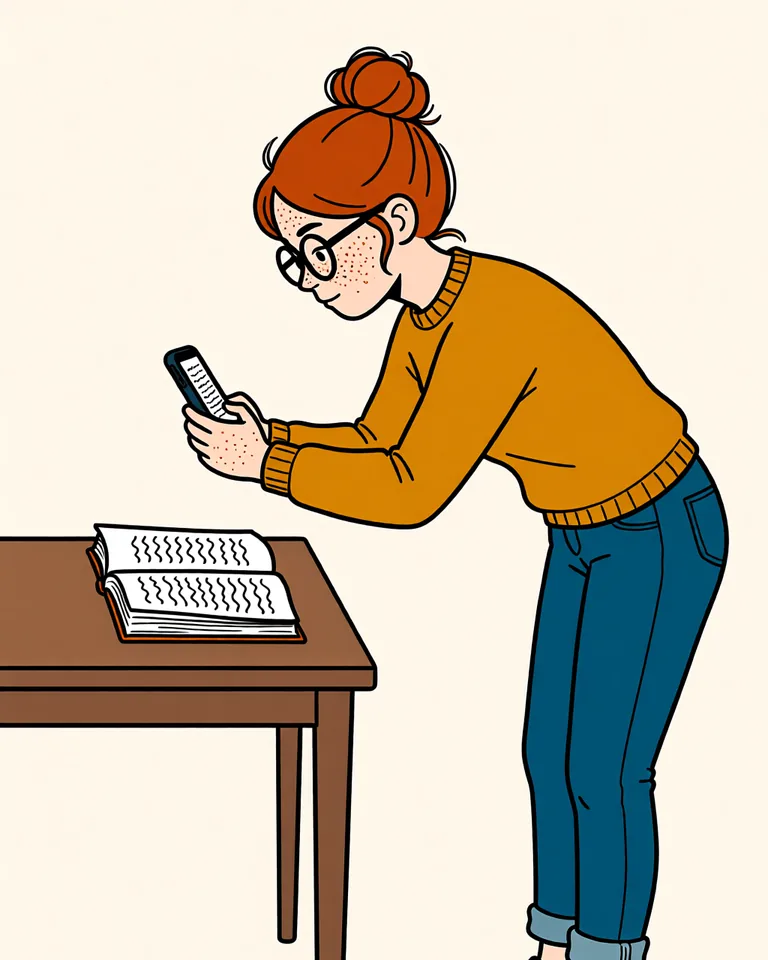
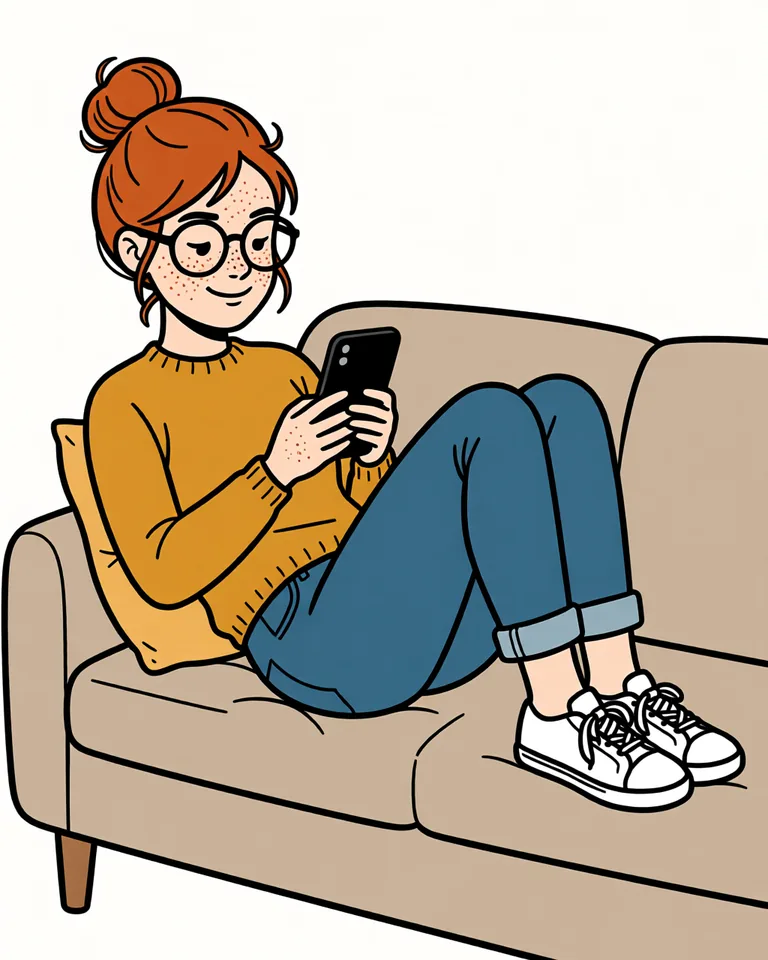
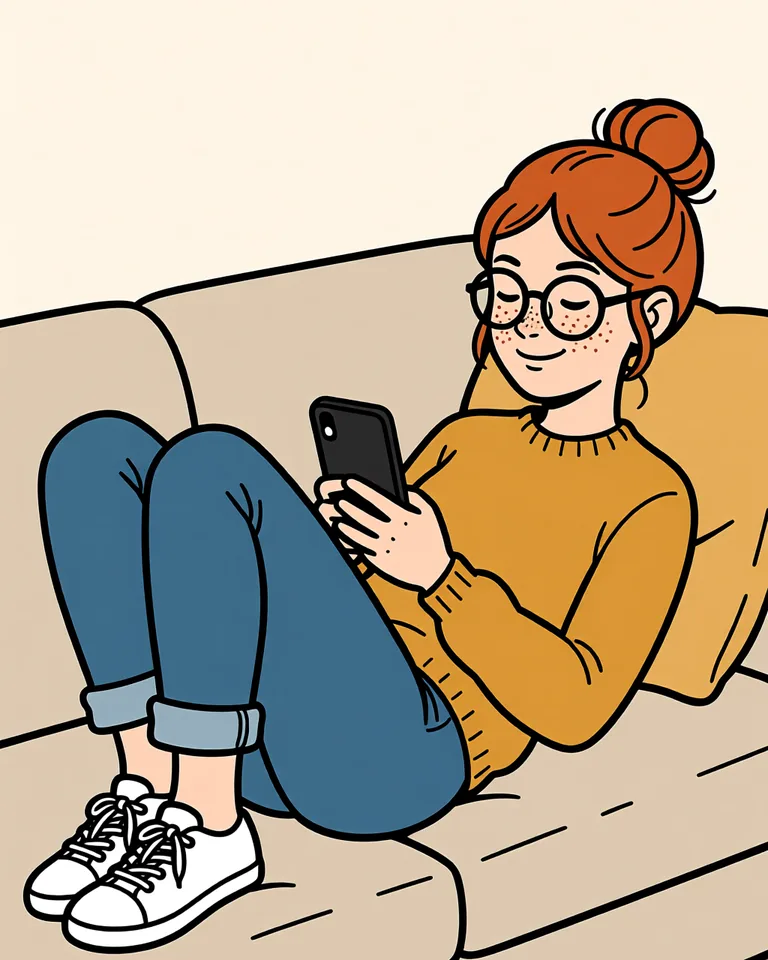
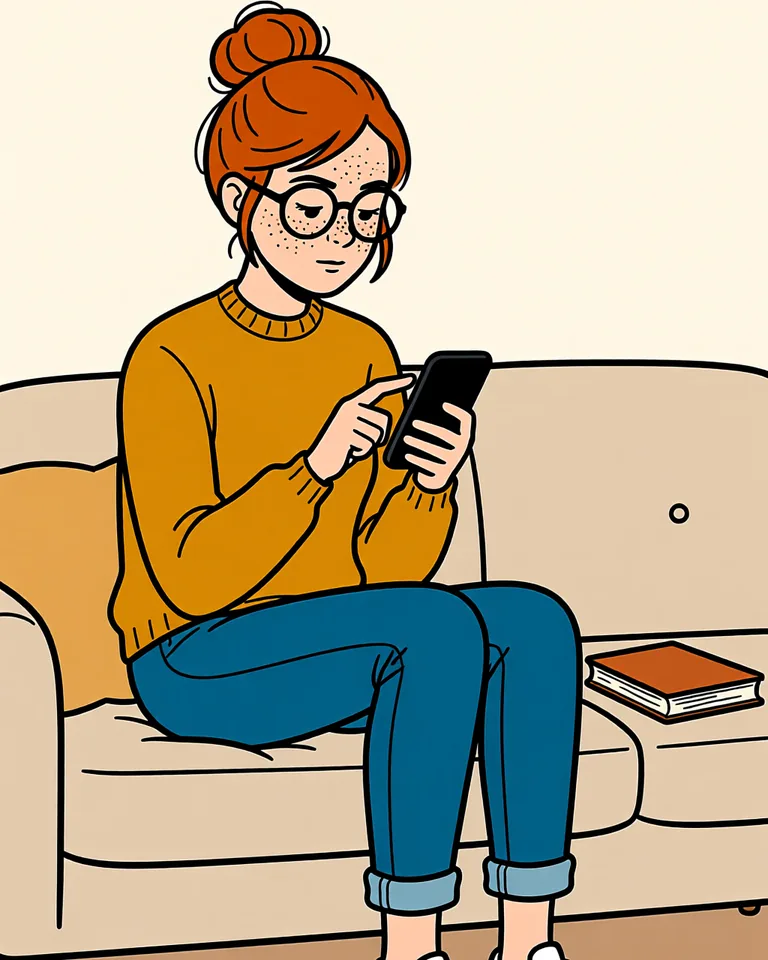
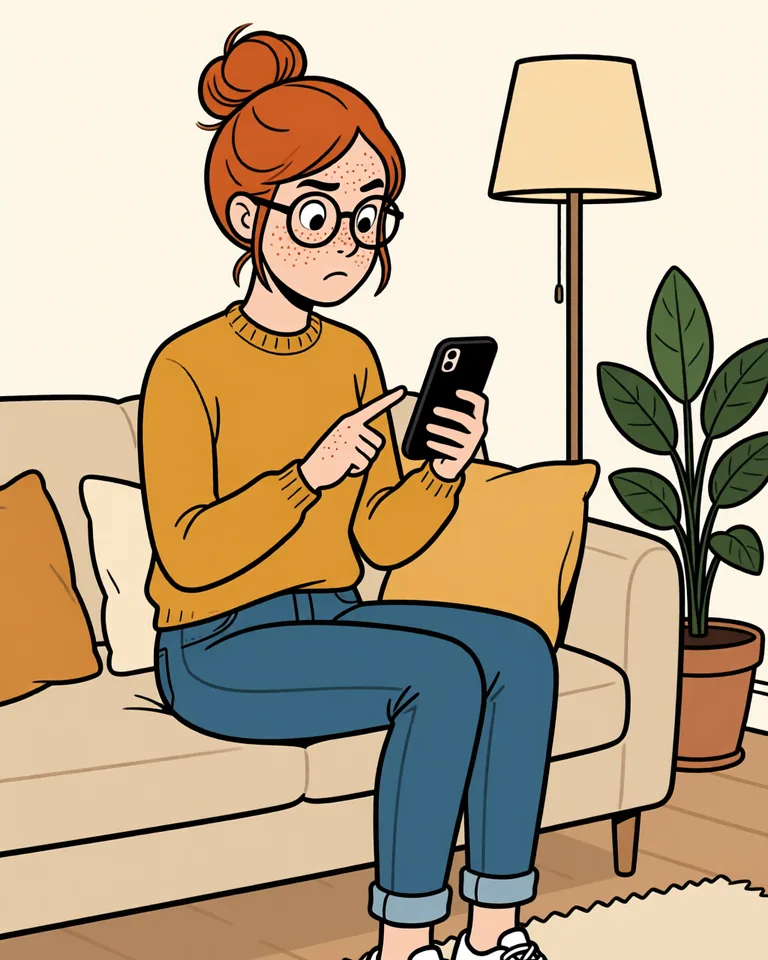
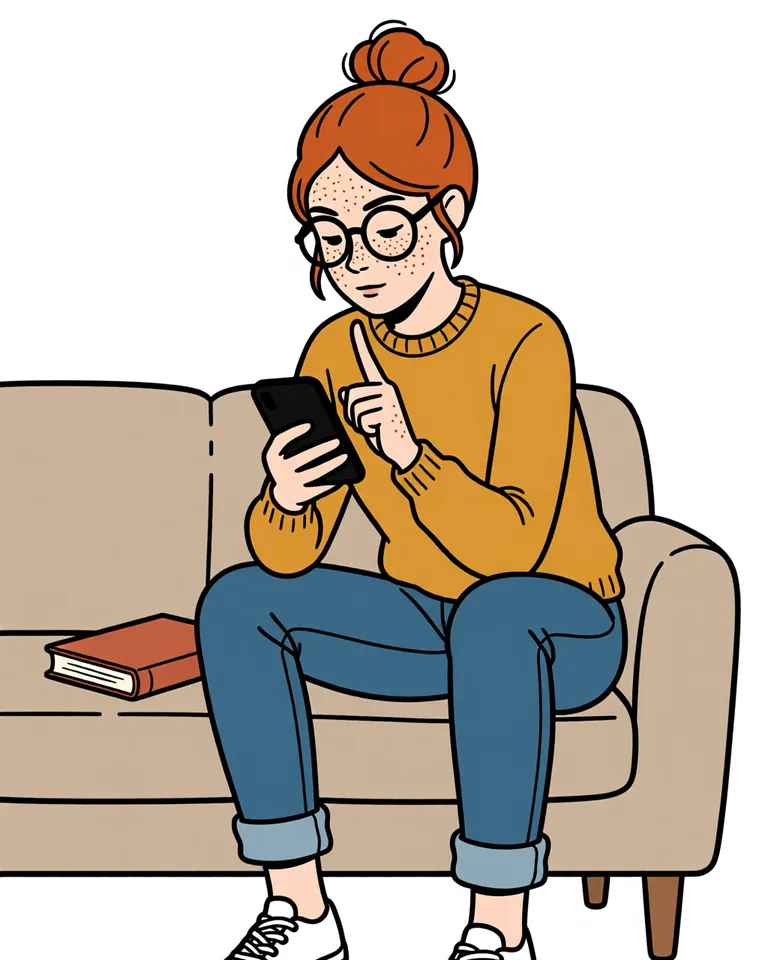
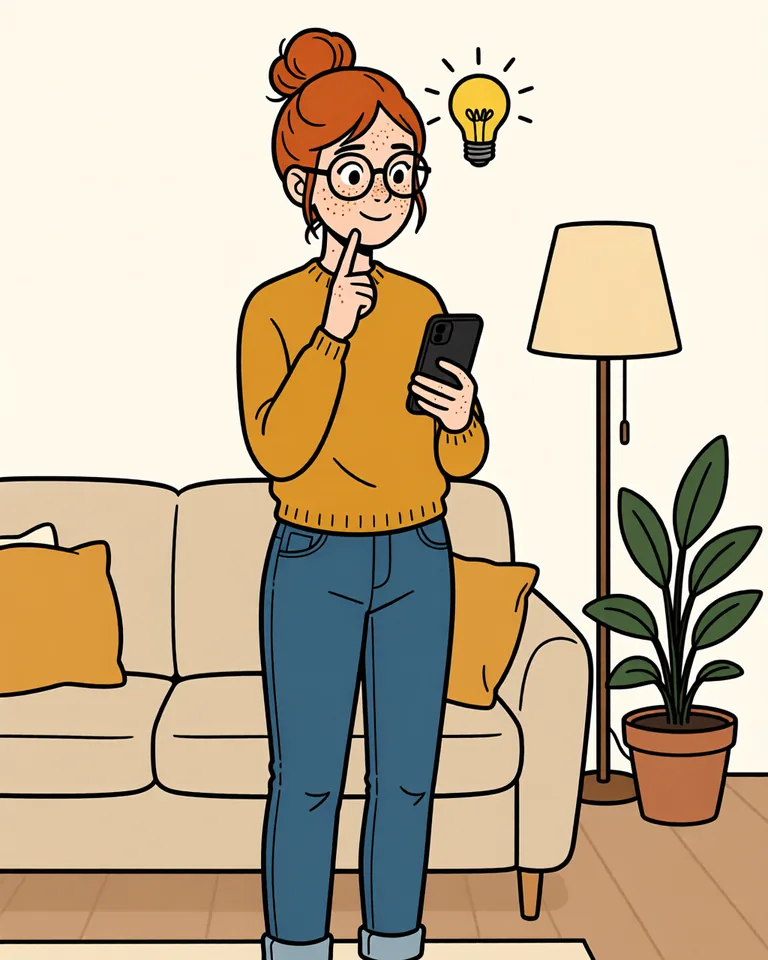
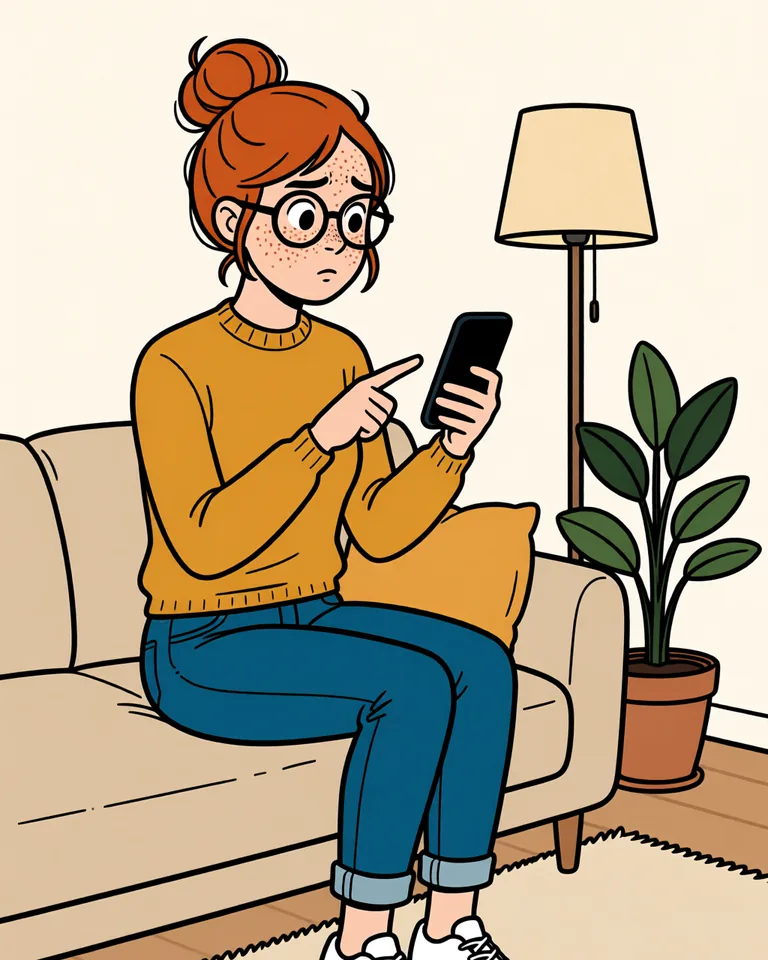
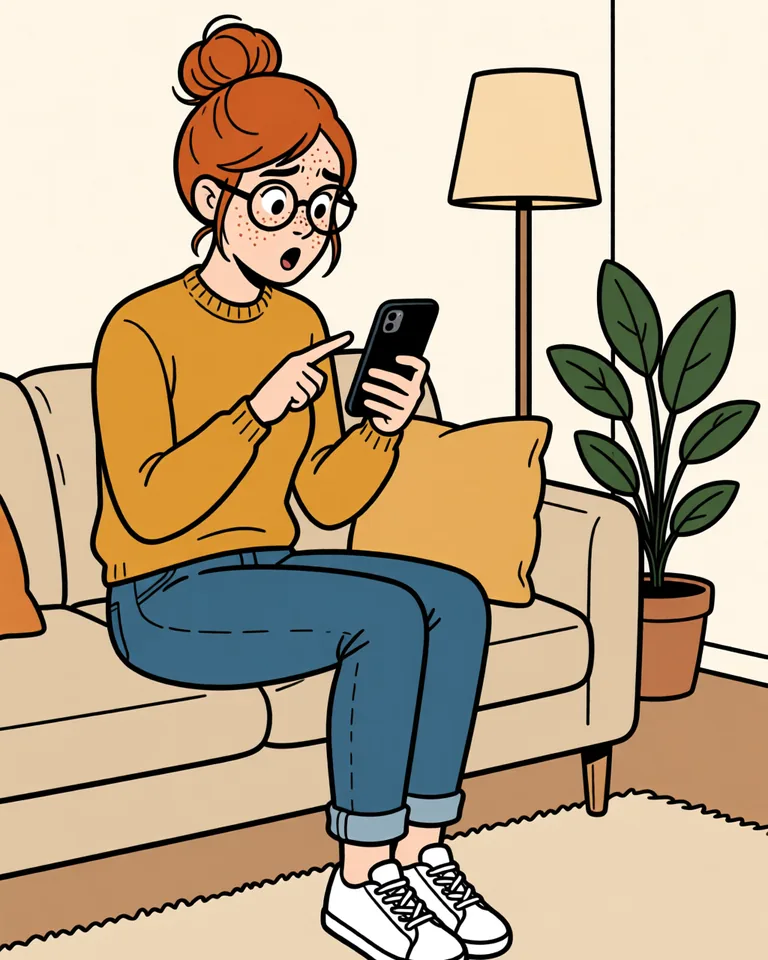
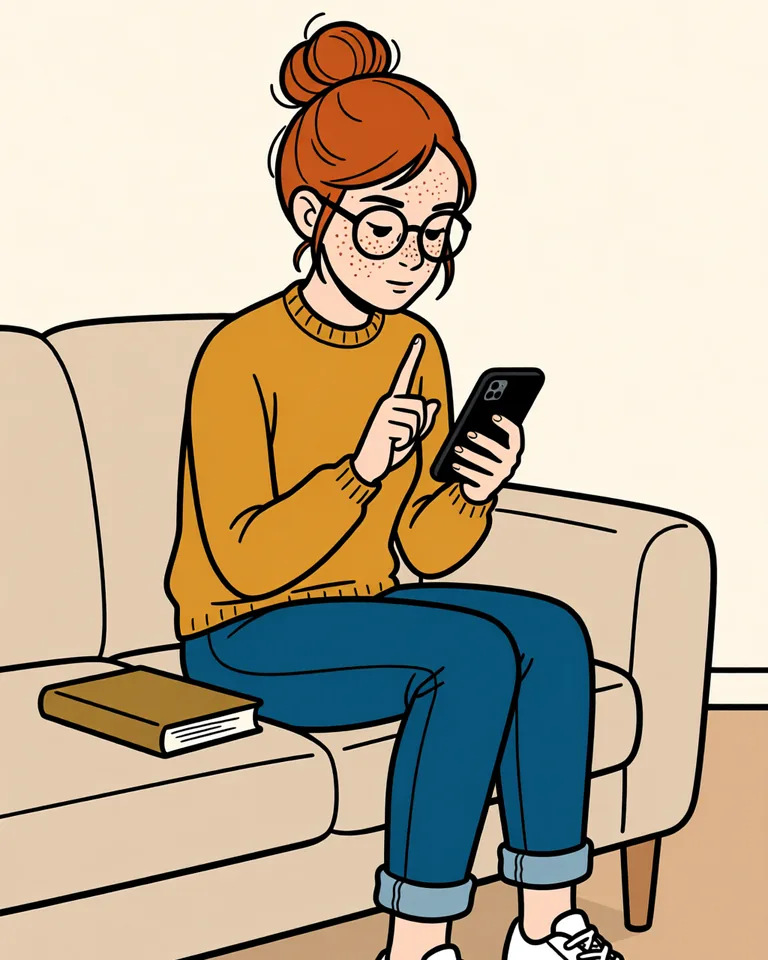
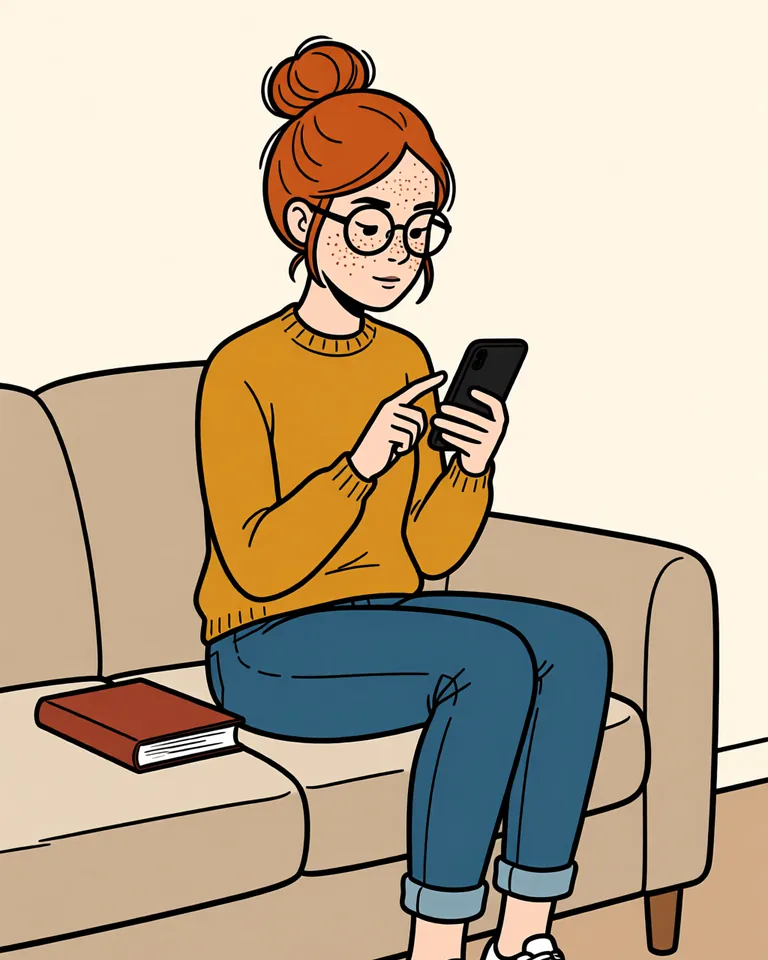
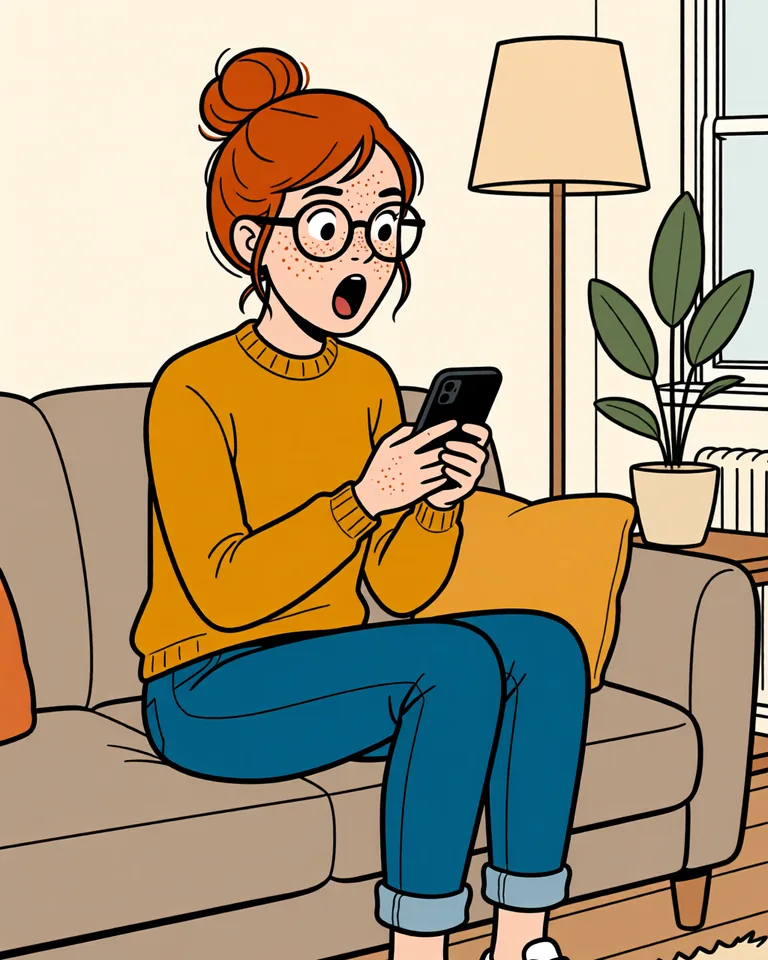
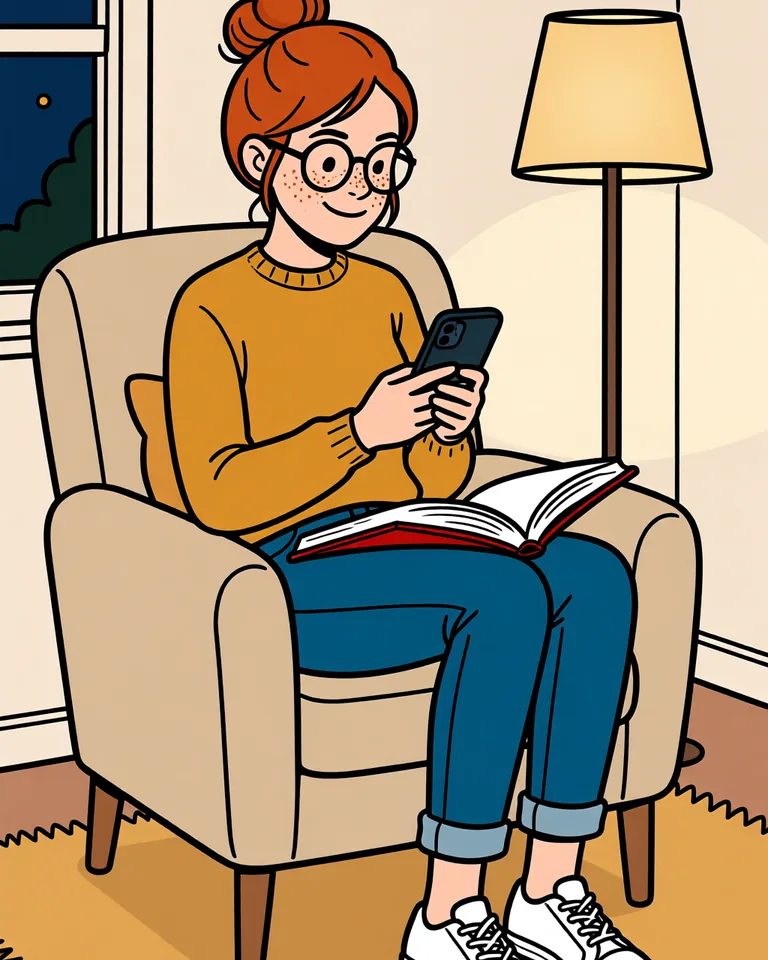
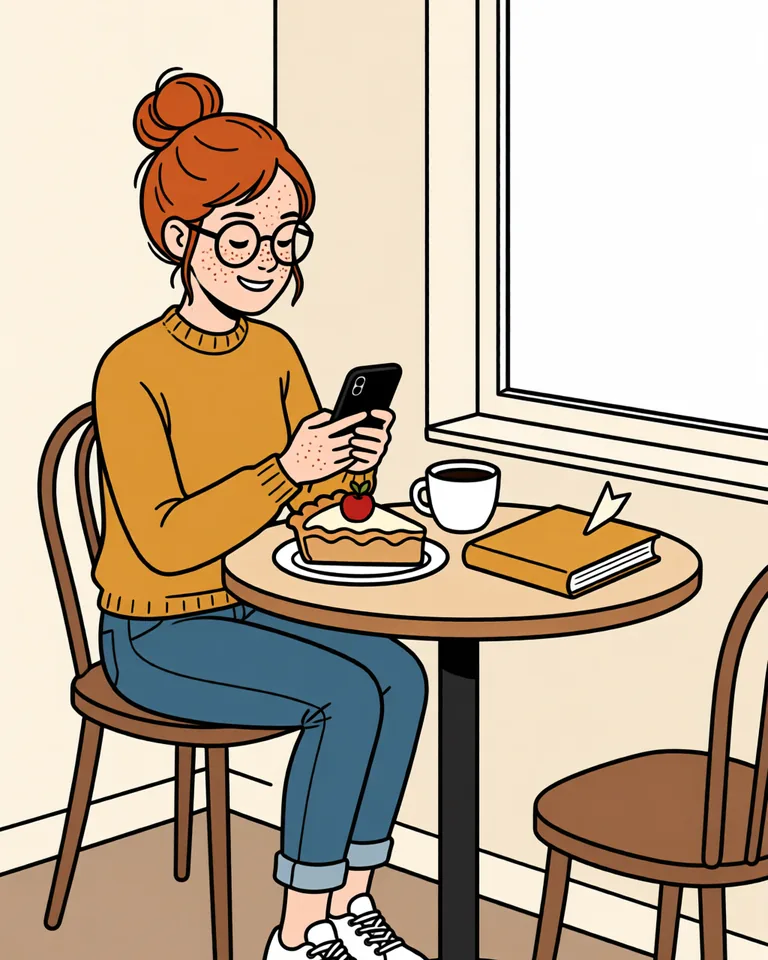
Tap a screen to enlarge
Illustrations are AI-generated. App screens are real screenshots.
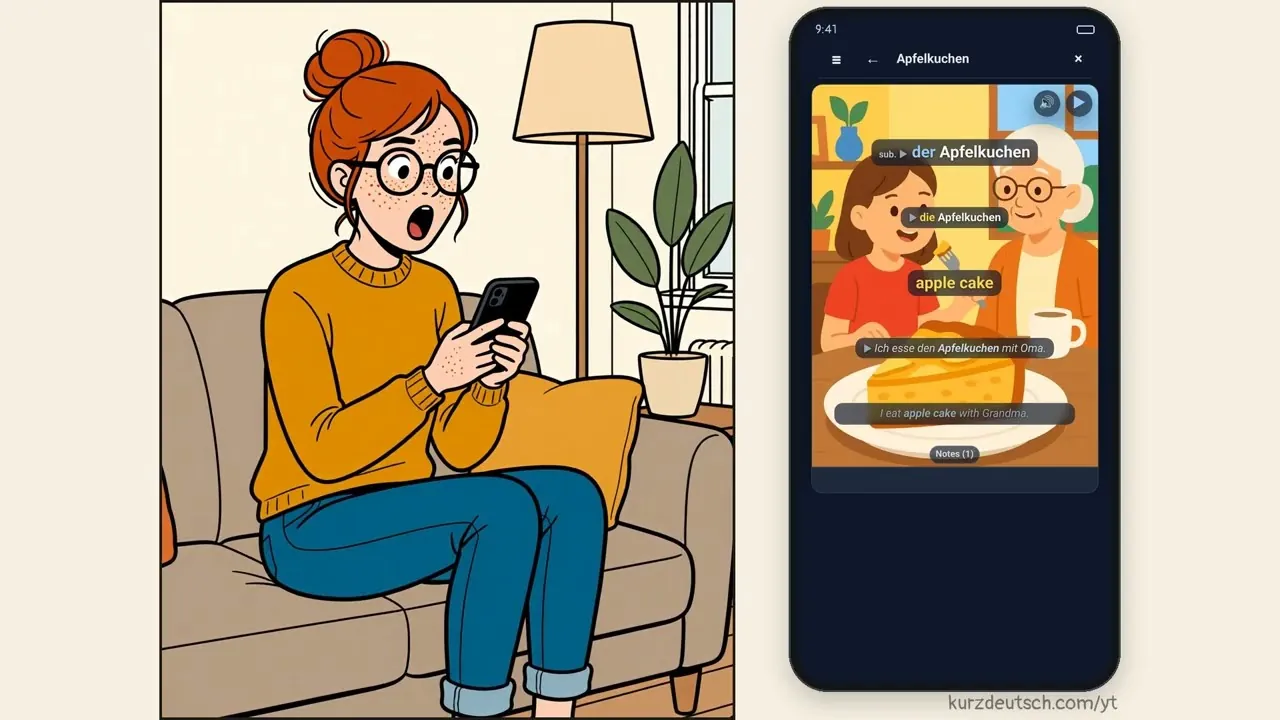
Watch the video (2 min, English)
Guide
How the reader works
Everything from the comic, step by step, with real screens from the app. Tap a screen to enlarge it.
The reader is open by invitation to the first 50 or so people. Request access in the app, signed in to your Kurzdeutsch account — I'll email you when you're in.
Request accessYour texts
Your texts is where you read German of your own choosing: a page of a book, the subtitles of a video or any text you paste. You translate it sentence by sentence and turn the words you don't know into cards.
To get there, tap Reading on the main screen (Today), then Your texts. If there is no lesson text in today's plan, Reading opens Your texts directly.
Below the buttons you find Ready-made texts, short stories to start with, and My pages, your own texts. Each one opens where you left off. Long-press a text to rename or delete it.
The reader works with a Kurzdeutsch account. It is an invite-only beta for now.
Four ways to add a text
- Take a photo: photograph a page of a book. The page is read on our server, usually in about a minute. It has to be German and sharp enough to read; if not, the app asks you to take the photo closer.
- Import a photo: pick photos from your gallery, several at once. They become one text.
- YouTube link: paste a link and the app takes the video's German subtitles. A video without German subtitles won't work, and a very long one is cut.
- Paste text: paste a German text and give it a title if you like.
Long texts are split into pages of about 300 words.
Tap a word: its translation
Tap any word and its translation appears right above it. Translations come in your translation language, the one you set in the app settings.
Double-tap: mark a new word
Double-tap a word you don't know. It gets a dotted underline. Double-tap it again to remove the mark. Marks are kept on this device.
Long-press: choose a sentence
Long-press the text to choose a part, usually one sentence. It turns white, and the buttons under the text work on it:
- Check: type or dictate your own translation, then tap Check. You get a verdict (Correct, The meaning is not quite right, or The meaning is lost), a good translation and notes on what to fix.
- Explain: a breakdown of the sentence: its translation, the verb, the cases and why the words take their form.
- ?: ask your own question about the passage, like "Why einen, not ein?". You can ask again after the answer.
Clear: start the sentence over
Clear takes the grade, the explanation and the questions off the chosen part, so you can try it again. The translation you typed stays.
Finish, then Make cards
When you are done with a page, tap Finish at the top. You see Unknown words: every word you marked, with its meaning, all ticked. Untick the ones you don't need and tap Make cards (N).
Each card gets its own example sentence, a picture and audio, so you hear how the word is pronounced.
Your own deck, practised the same day
The cards go into your deck My words. The new words join today's training right away, in Forward translation (German to your language). Reverse translation (your language to German) starts on a later day.
+: add the next page
Next time, tap + under the text and take a photo of the next page. It is added to the same text. In a text from YouTube there is no +; that button opens the video at the place you are reading instead.
Daily limits and your own key
During the beta, AI features are on us within daily limits. Add your own OpenAI or Anthropic key and word hints, Check, Explain and ? run on it: you pick the model and pay the provider directly. Photos of pages stay on us within the daily limits.
Words already in our catalogue become cards for free. On top of that, your first 10 brand-new words are on us. After that, new words need your own OpenAI key: it pays for the picture, while we keep the picture model fixed so all cards look the same.
To add a key, open Your texts and tap ⚙ Reading settings, then Your own key. Paste the key and tap Check key. The key stays on your device, and you choose among the models of its provider.
How much is left today shows in the app: the word-hint counter on Your texts and the card counter on Unknown words. There is also a shared daily budget for everyone. When it runs out, the reader says so, and it works again the next day.